In our system, we already have an API that provides the necessary functionality for Hanger Selector calculation. However, a hybrid DLL has been introduced to address certain challenges and enhance usability in specific scenarios. This document outlines the purpose of the hybrid DLL, its advantages, and when it should be used.
While the API offers real-time data and seamless integration, there are cases where a hybrid DLL is beneficial:
- Offline Access: Users may need to access core functionalities without an internet connection.
- Performance Optimization: Reducing API calls can improve response times and system performance.
- Failover Mechanism: Ensures continued operation in case of API downtime or network instability.
- Security Considerations: Some users may require local processing due to data privacy concerns.
- Integration with Desktop Applications: Desktop-based solutions can use the DLL without relying on external services.
- Provides the same core functionalities as the API.
- Stores necessary data locally for offline usage.
- Optimized for performance and minimal resource consumption.
- Supports easy updates to maintain data consistency with the API.
- Can be used as a fallback when API services are unavailable.
| Scenario | API | Hybrid DLL |
|---|---|---|
| Online, stable connection available | ✅ | ✅ |
| Limited or no internet access | ❌ | ✅ |
| Performance-sensitive applications | ⚠️ (may depend on latency) | ✅ |
| Real-time updates required | ✅ | ⚠️ (Online mode) |
| Local security constraints | ❌ | ✅ |
- Ensure the hybrid DLL is periodically updated to match API changes.
- Implement synchronization mechanisms to handle data consistency.
- Clearly define fallback strategies between API and DLL usage.
- Evaluate security measures to protect locally stored data.
- Development environment set up with .NET Framework 4.5 or higher.
- Request the latest version of the offline DLL obtained from Request Access.
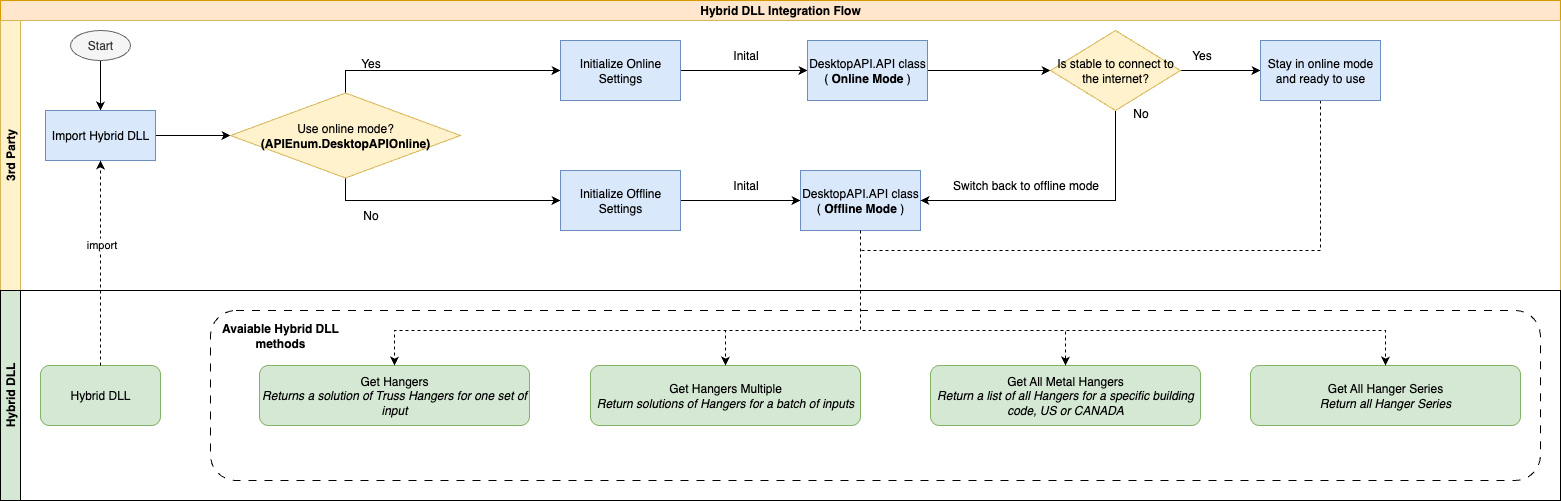
How it works (Step by step)
- Import the Hybrid DLL
- Decide target mode (Online vs Offline) from APIEnum
- Initialize settings for the chosen mode
- Online setting parameters refer to the section Hybrid DLL Integration Guide | 2.2.4 Modes of Operation
- Offline setting parameters refer to the section Hybrid DLL Integration Guide | 2.2.4 Modes of Operation
- If Online mode, verify a stable internet connection → If not stable, fallback to Offline mode
- Use the same methods set (Get Hangers, Get Hangers Multiple, Get All Metal Hangers, etc) through the active mode
To integrate a DLL into your project, please follow these steps:
- Copy the hybrid DLL into your project's library folder
- Add references to the DLL to your project settings:
- For .NET: Use "Add Reference" or modify .csproj
- For Java: Load hybrid DLL using System.loadLibrary (using JNA/JNI to call hybrid DLL)
- Import the required namespace or package.
- Instantiate the DLL class by selecting the mode (Online or Offline).
Example code:
public static API GetDesktopAPI(APIEnum apiEnum)
{
    if (apiEnum == APIEnum.DesktopAPIOnline)
    {
        DesktopAPISettings settings = new DesktopAPISettings
        {
            environment = ENVIRONMENT, // Target environment (e.g., QA, Staging, Production)
            clientID = DESKTOP_API_CLIENT_ID, // Unique client identifier
            clientSecret = DESKTOP_API_CLIENT_SECRET, // Secret key for authentication
            timeoutMs = DESKTOP_API_TIMEOUT, // API timeout value in milliseconds
            useOfflineAPI = false // Indicates Online Mode
        };
        return new API(settings);
    }
    else if (apiEnum == APIEnum.DesktopAPIOffline)
    {
        DesktopAPISettings settings = new DesktopAPISettings
        {
            useOfflineAPI = true // Indicates Offline Mode
        };
        return new API(settings);
    }
    return null;
}The Hybrid DLL supports two modes, determined by the APIEnum parameter:
Calls the Hanger Selector API to retrieve results.
| Parameter | Required | Example Value | Description |
|---|---|---|---|
environment | Yes | APIenvironnement.SST_Dev | Defines the target execution environment where the API is hosted. More information can be found in the APIenvironment table below |
clientID | Yes | this_is_client_id | Unique identifier assigned to your application/client for authentication |
clientSecret | Yes | this_is_client_secret | Secret key tied to the clientID. Must be kept confidential. |
timeoutMs | Yes | 30000 | Maximum time (ms) before the API request times out. Used only to check the internet connection before switching to Offline Mode. Default value 500 |
useOfflineAPI | Yes | false | Must be set to false to enable Online Mode. |
Uses built-in logic and local data to perform calculations and return results.
| Parameter | Required | Example Value | Description |
|---|---|---|---|
useOfflineAPI | Yes | true | Must be set to true to enable Offline Mode. |
| APIenvironnement | Environment | Description |
|---|---|---|
APIenvironnement.Dion | Sandbox | Sandbox environment for internal testing |
APIenvironnement.SST_Dev | Development | Development environment for active feature development and integration testing. |
APIenvironnement.SST_QA | Quality Assurance | Quality Assurance environment used by testers to validate features before release. |
APIenvironnement.STT_Production | Production | Production environment (live system). Used for real-world data and end users. Stable and secure. |
To keep data consistent, the DLL includes an auto-update mechanism. This ensures that your offline DLL version is always up to date with the latest release.
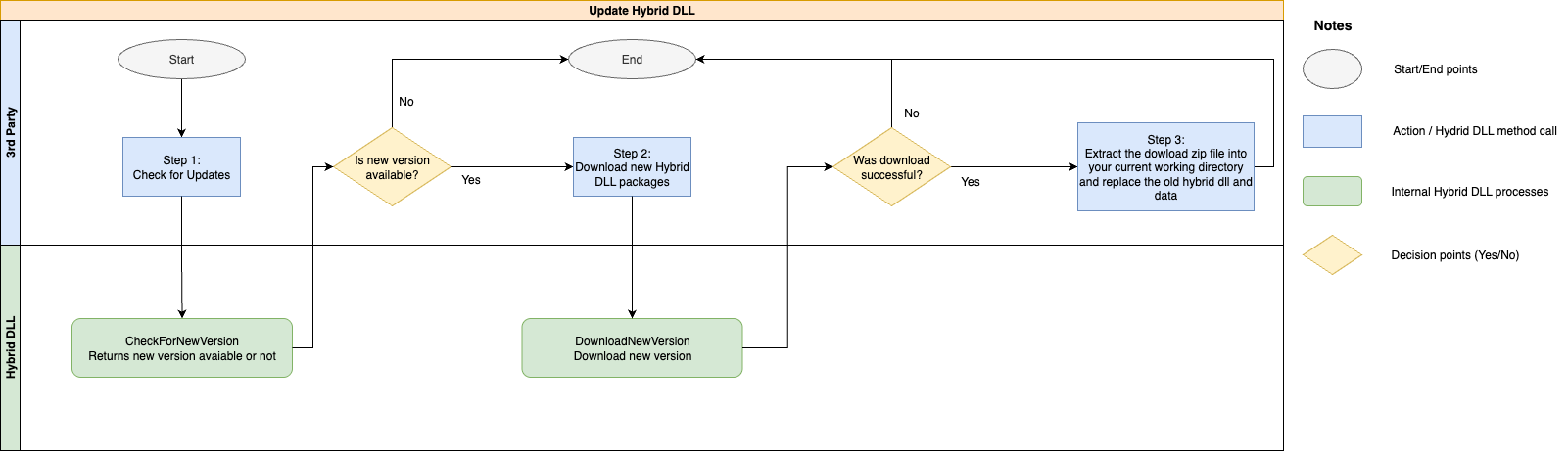
Call the method
API.CheckForNewVersion(ref message).This checks if a newer offline DLL version is available.
- No → Stop the process
- Yes → Continue to download
Call the method
API.DownloadNewVersion(ref message).This retrieves the latest DLL package.
- If the download fails → Stop the process
- If the download succeeds → Continue
- Extract the downloaded
.zipfile into your current working directory - Replace the old DLL and data files with the new ones
- Check for new version:
API.CheckForNewVersion(ref message) - Download the new version:
API.DownloadNewVersion(ref message)
The Hybrid DLL defines a set of custom exception types that enable the integration team to identify errors consistently and implement appropriate handling strategies.
| Exception Type | When it is thrown | Operation Mode |
|---|---|---|
SSTHangerSelector.Core.Exceptions.BadRequestException | Thrown when the request is invalid or contains missing required parameters | Offline |
SSTHangerSelector.Core.Exceptions.InternalServerException | Thrown when the Core calculation has an error (Out Of Memory, I/O blocked, etc.) | Offline |
System.TimeoutException | Thrown when the API request times out | Online |
System.Net.Http.HttpRequestException | Thrown for HTTP errors (400 Bad Request, 404 Not Found, 500 Internal Server Error, etc.) | Online |
System.UnauthorizedAccessException | Thrown for authentication/authorization failures (401 Unauthorized, 403 Forbidden) | Online |
Newtonsoft.Json.JsonException | Thrown when the JSON response cannot be parsed or deserialized | Online |
System.InvalidOperationException | Thrown when JSON serialization of request data fails | Online |
| Hybrid DLL Method | Hanger Selector API | Description |
|---|---|---|
GetHangers | POST - /hanger-selector/hangers | Returns a solution of Truss Hangers for one set of inputs |
GetHangersMultiple | POST - /hanger-selector/hangers/get-multiple | Return solutions of Hangers for a batch of inputs |
GetAllHangersSeries | GET - /hanger-selector/hangers/get-all-hangers-series | Returns a list of all hangers for a specific building code, US or CANADA |
GetAllMetalHangers | GET - /hanger-selector/hangers/get-all-metal-hangers | Returns an All Hangers Series |
| N/A | POST - /hanger-selector/hangers/why-not | Return hanger failure reasons for one set of inputs |
CheckForNewVersion | N/A | Checking for a new version of the Hybrid DLL |
DownloadNewVersion | N/A | Download the new Offline DLL version if it exists |